
Introduction
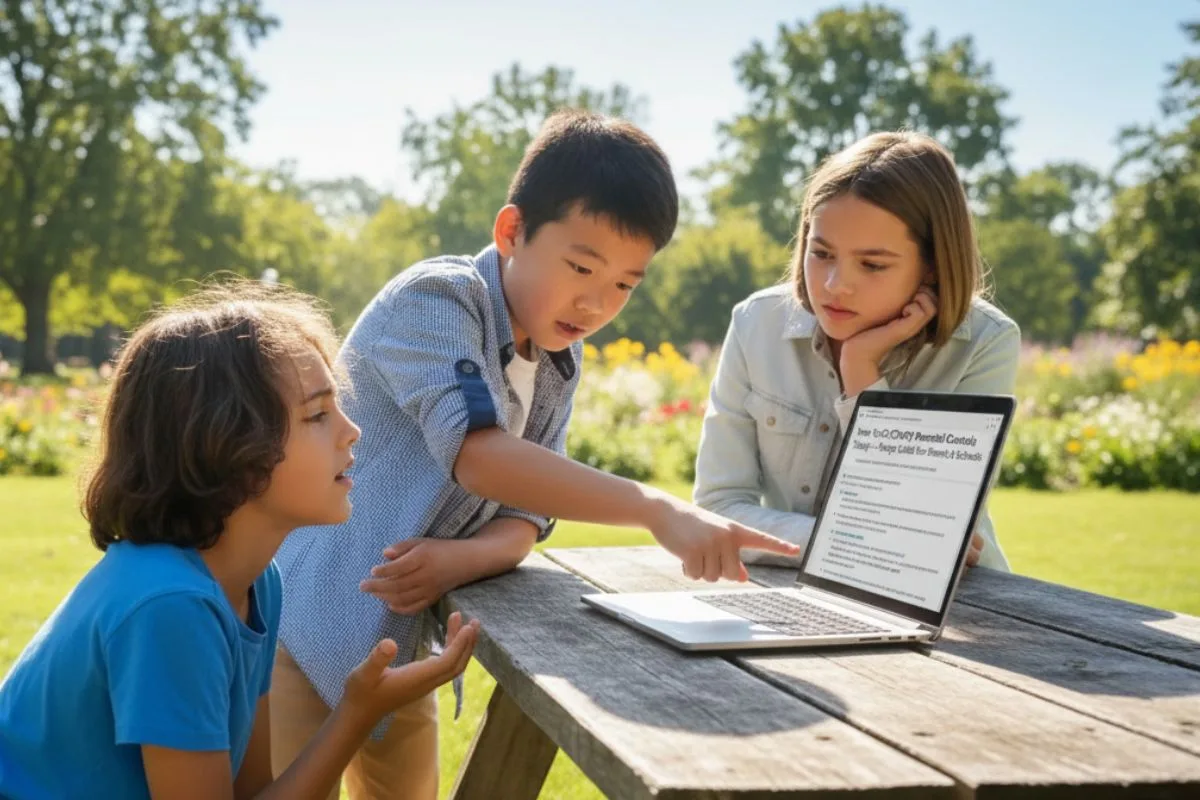
OpenAI released parental controls and a safety-routing system for ChatGPT after heightened concern over teen safety. The controls let parents link to a teen’s account, limit sensitive content, disable Memory, set “quiet hours,” and receive limited safety notifications — while keeping routine chat transcripts private. This guide takes you through the setup and what schools should know.

Why it matters
Parents and educators now have tools to reduce risky exposures and get alerts when human review flags acute safety concerns — but the system balances teen privacy by avoiding routine transcript access. Schools and parents should combine these controls with guidance, counselling resources and clear escalation plans.
Quick checklist — what you’ll need before you start
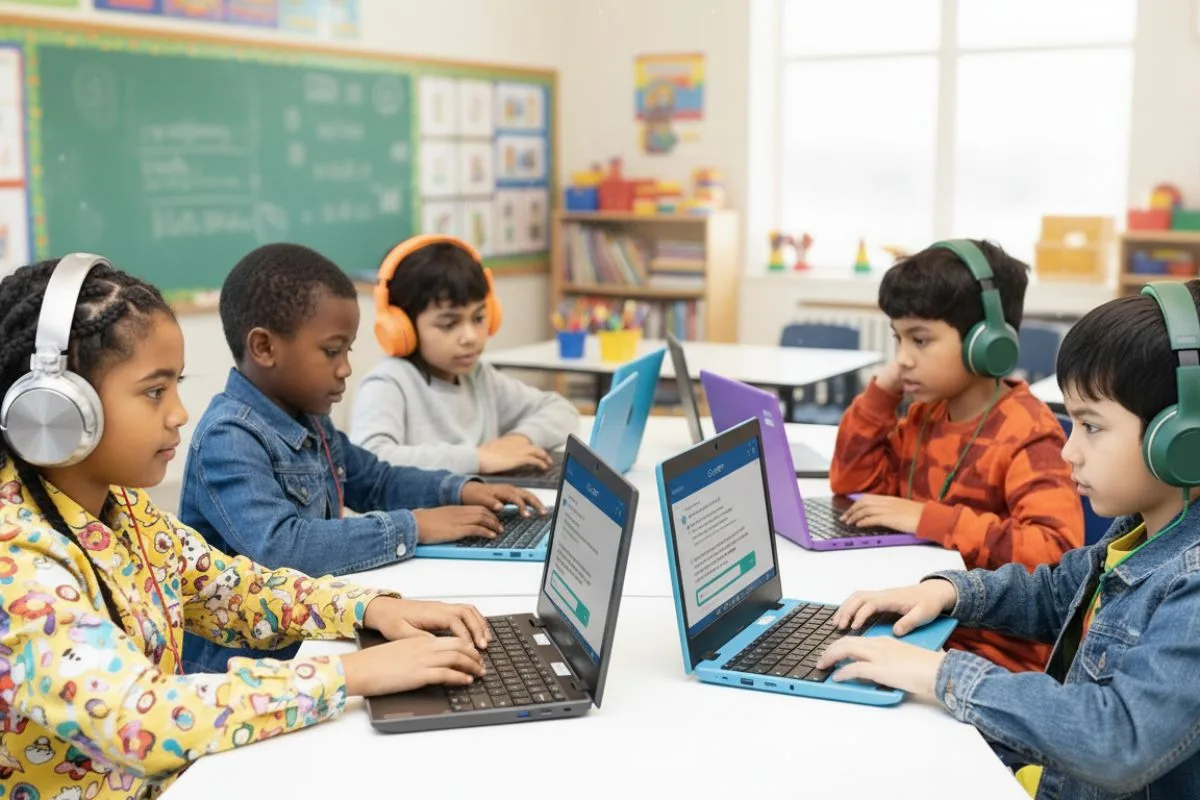
- A ChatGPT account for the parent/guardian and for the teen (minimum age: 13).
- Email addresses or phone numbers for both accounts.
- Time (about 5 minutes) to send and accept the invite and set preferences.
- School IT/admin contact if you plan to link school accounts or deploy guidance at scale.
How to set ChatGPT parental controls — step-by-step
1) Open ChatGPT settings
Sign in at chat.openai.com or open the ChatGPT mobile app, tap your profile or settings, and choose Parental controls (or look under Account → Settings → Parental controls). The feature is rolling out on web first, with mobile coming soon.
2) Send an invite to your teen
Choose Link an account → enter your teen’s ChatGPT email or phone number → send invite. The teen must accept the invite from their account for the link to activate. Teens can also invite parents if preferred. OpenAI requires mutual consent to respect teen privacy.
3) Configure content and feature limits
Once linked, parents can toggle options such as: disable image generation, block sexual or violent role-play, disable voice features, stop Memory from saving chats, and enforce “quiet hours” (time windows when ChatGPT is limited). Choose restrictions that match your family rules and your teen’s maturity.
4) Opt out of model training
You can choose to prevent the teen’s conversations from being used to train OpenAI models. This setting helps protect privacy and is useful for families concerned about data reuse.
5) Understand safety notifications
OpenAI’s systems will flag certain high-risk signals (self-harm, exploitation) and route them for human review. If a trained reviewer verifies a serious concern, parents may receive a limited notification with resources and next steps — but routine chat transcripts remain private. Schools should know notifications are targeted and not a substitute for local welfare reporting.
6) What happens if the teen unlinks the account
If a teen unlinks, OpenAI will notify the parent that the link was removed — but parents will not get the teen’s chat history. This is intended to strike a balance between privacy and safety.
Practical guidance for schools and counselors
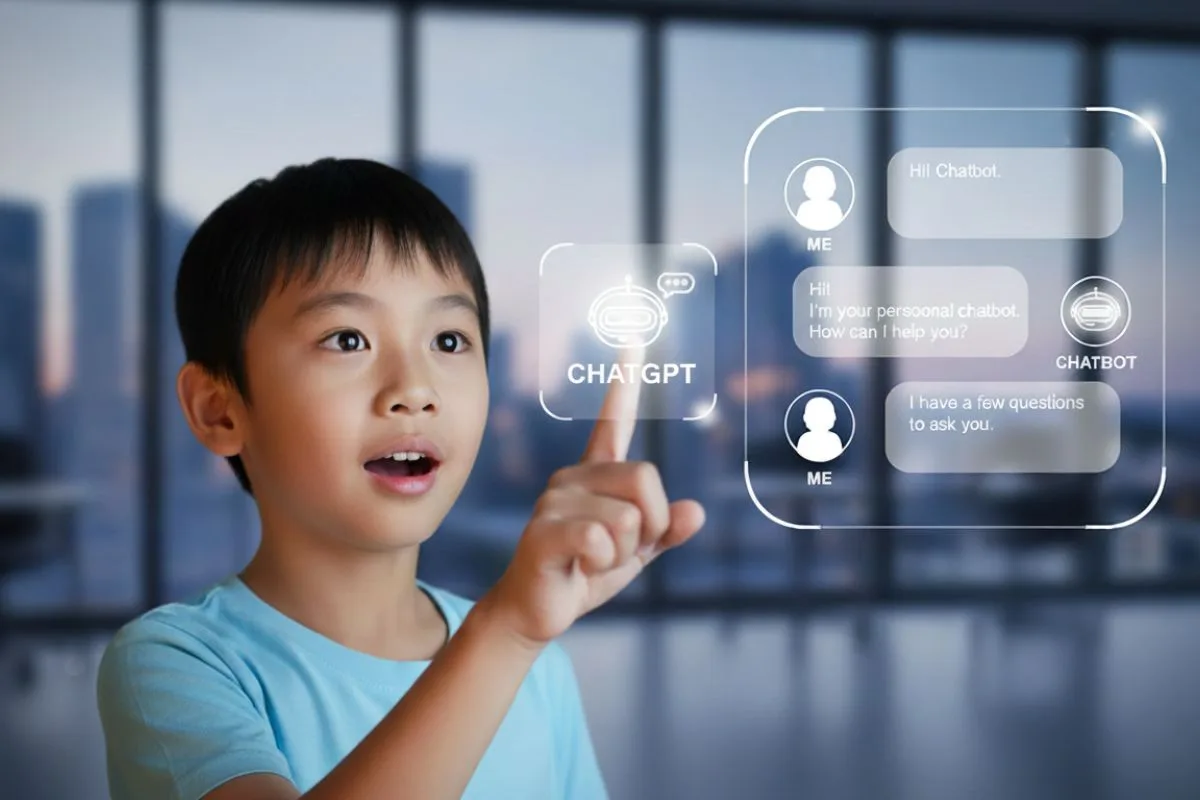
- Policy: Update acceptable-use and safeguarding policies to reference AI tools and parental controls.
- Education: Teach students digital resilience and when to seek help; don’t rely solely on automated alerts.
- Escalation: Establish a clear protocol: if a safety notification arrives, contact designated safeguarding leads and local emergency services as needed.
Limitations & what to watch
- Not full monitoring: Parents don’t get routine transcripts; this preserves teen privacy but limits visibility.
- Age verification: OpenAI is testing age-prediction tools but comprehensive ID checks are not yet required; under-13 access is still a risk to manage locally.
- False alarms & gaps: Automated detection can miss some risks or create false positives — human support and local mental-health resources remain essential.
Quick resources
- OpenAI parental-controls page and parent FAQ.
- Crisis lines (e.g., 988 in the U.S.) and local school counselling contacts (add region-specific links).
Bottom line: ChatGPT’s parental controls give families and schools practical tools to limit risky content and get targeted alerts — but they are not a replacement for supervision, counselling, and clear school safeguarding procedures. Use the settings, talk with your teen, and coordinate with your school’s support teams.
Frequently Asked Questions
How do I link my teen’s ChatGPT account?
Go to Account → Parental controls, send an invite to your teen’s ChatGPT email or phone number, and have them accept the invite from their account. Both sides must consent.
Will I be able to read my teen’s chats?
No. Routine chat transcripts remain private. Parents receive only limited safety notifications when trained human reviewers confirm an acute concern.
Can I stop my teen’s chats from being used to train models?
Yes — the parental controls include an option to opt the teen’s account out of model-training data.
What are “quiet hours”?
Quiet hours let parents set time windows when ChatGPT restricts access — useful for bedtime or study time enforcement.
Are these controls available on mobile?
The rollout starts on the web; OpenAI says mobile availability will follow. Check your app update notes for mobile release timing.
Author note: I’m a technology reporter who reviewed OpenAI’s parental controls announcement, the company’s help pages, and Reuters coverage to compile this practical step-by-step guide for parents and schools. The piece uses official guidance where available and flags limits (privacy, age verification) so families and educators can make informed choices.